The Parent Path: Start a Community in Sixty Seconds
June 12, 2026 · Krishna Kamath
Updated July 23, 2026 for Join Requests, one link you can post anywhere.
Carpool.School has two ways to start a community. This is the parent path.
Why parent-led
Every Carpool.School community is built around a place: a school, camp, youth org, or activity center. Schedules live inside it as activities that any parent can add: the school day, soccer practice, the chess-club pickup. You don't need a new community for a new schedule; you add an activity.
Organizations can create the official community too; see The Staff Path. Parent-led covers a few situations that path doesn't:
- No one's set it up yet. Don't wait for the org. Pick the place, create the community, start carpooling now.
- You want a smaller, private community. Maybe you don't need the whole school, just the handful of families you already coordinate with. Invite only them, keep it closed.
- No official roster to cross-check. Camps, after-school programs, and similar groups often don't have an official enrollment list to verify against; parent-led doesn't need one.
1. Search for your community
Go to carpool.school or download the app and choose the parent tab. Search for your school, camp, team, or group by name.
The search dropdown has two sections:
- On Carpool.School: communities already on the platform. Selecting one takes you to the join flow. If someone invited you to an existing community, start here instead →
- Start a new community: places pulled from public map data. Select your group here to create a new parent-led community.
2. Start your community
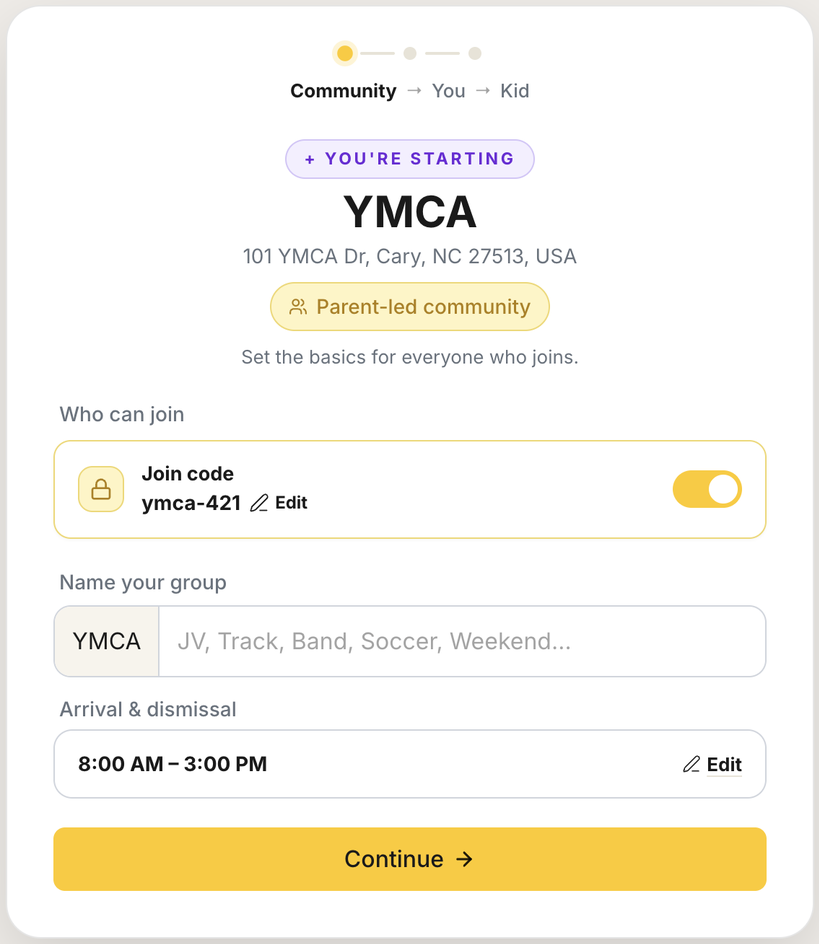
You land on the start screen. Three decisions:
- Name. Pre-filled from your search. Adding a suffix (PTSA, Summer Camp, Class of 2030) is optional but worth doing, since it tells families at a glance what the community is for.
- Arrival and dismissal times. The community-wide default schedule. Other schedules (a second bell time, M/W/F vs Tu/Th sessions) don't need their own community; add them as activities in the next step. Start a separate community only when the families are different, not just the times.
- How families join.
- Invite-only. You get a join code, auto-generated or your own. Only families with the code can join. Rotate it any time.
- Open enrollment. No code needed, anyone who finds the community can join. For groups that want maximum reach; most school communities should stay invite-only.
You become the first member and the community admin.
3. Set up your family
Create your account, add your kids and their schedule, and set your home address: the same steps any parent joining your community will go through. What that looks like →
This is also where activities come in. Add the ones your kids do (soccer practice, chess club). Families who join later pick from the same list or add their own. Families in the same activity find each other for those hours, not just the school bell.
Community = who. A membership boundary: who can see whom, with its own join gate.
Activity = when. A schedule variation inside the same group of families.
4. Invite families
Once your profile is set, you land on the share screen. Two moves from here:
- Share your invite link with the families you'd invite personally: the group chat, a class email list. It carries your join code, so anyone who opens it lands straight in signup and joins on the spot. Keep it to channels only your own families see.
- Open the Launch Kit for ready-to-share materials branded with your community name (email copy, a group-chat blurb, a flyer, a yard sign). By default they carry your request-to-join link, which grants nothing on its own: families ask, and approving a request sends them the invite for you. That's what makes the flyer and yard sign safe in public. (You can switch the kit to the invite link instead.)
Carpooling starts as soon as a second family joins.
What you've built
A community that grows on its own. The invite link is community-wide, so it travels: families share it with families you haven't met. Nobody is verifying each member the way a staff-led community does, so keep that link in channels your own community actually uses rather than the open internet. For public placements, use the Launch Kit materials instead: they carry the request-to-join link, which only asks, and you approve from one list.
Even without the staff path's personal, per-family invites, two things hold:
- Membership stays gated. Only members see each other, and you can remove anyone who doesn't belong.
- The privacy model is identical. Parent-led removes the institutional gate, not the privacy protections. How privacy works →